Using the AI Viewer Panel
Learn how to use the AI viewer panel in Second Opinion®
Clicking into a patient in Second Opinion® will open that patient's radiographs. Clicking into a radiograph will open it and allow you to use the AI viewer panel. The panel can be found to the right of the radiograph.

All detections can be turned on and off by toggling the AI viewer button. You can also temporarily suppress the detections by holding down the space bar while viewing the radiograph. Releasing the space bar will display the detections again.
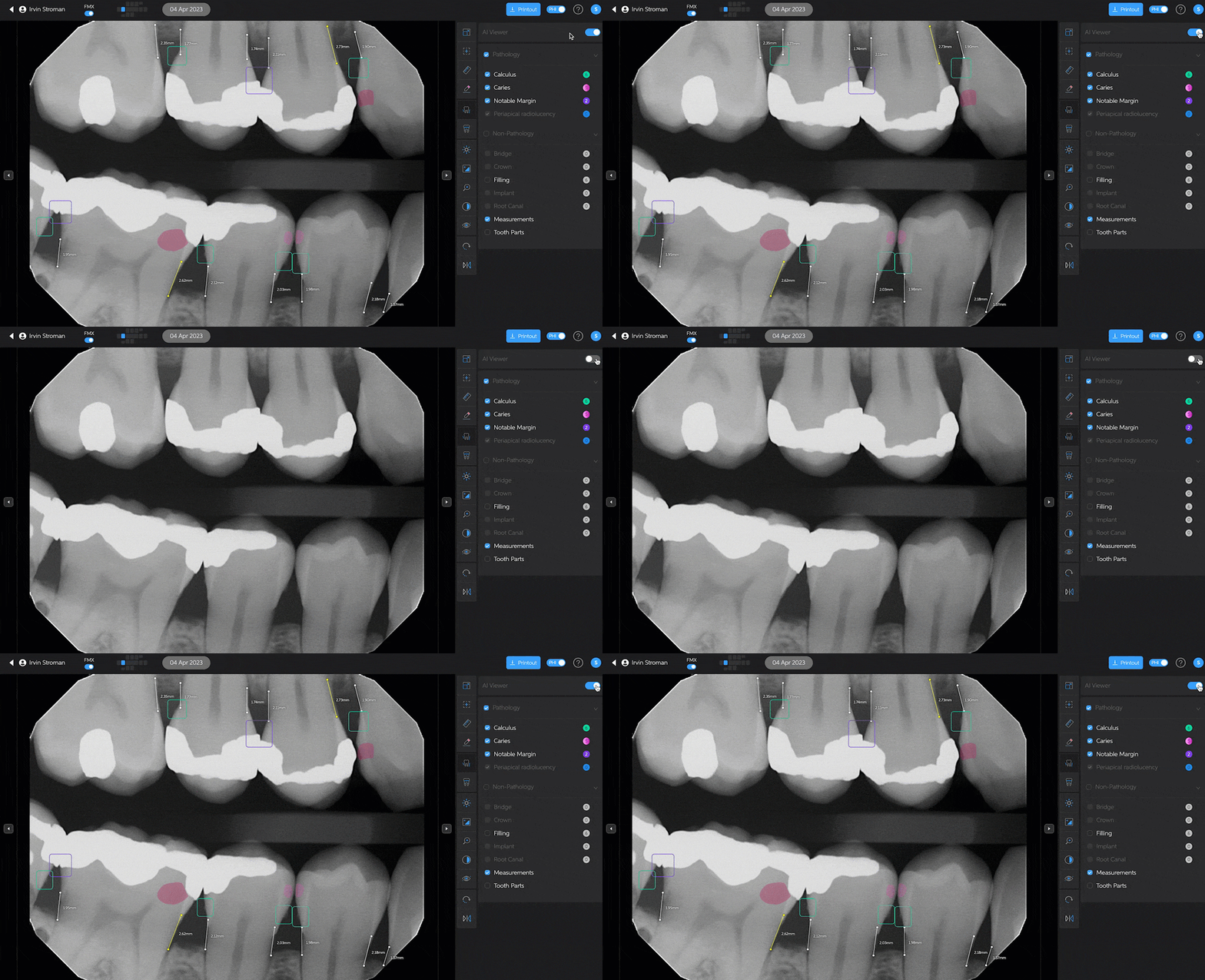
Individual pathologies can also be turned on and off by clicking the check boxes next to the pathology. To the right of the pathologies you will see colored circles that indicate the corresponding color of the pathology with a number that tells you how many times that pathology appears on the radiograph. 
Individual non-pathologies can be turned on and off by clicking the check boxes next to the non-pathology. To the right of the non-pathologies you will see gray circles that tell you how many times that non-pathology appears on the radiograph.
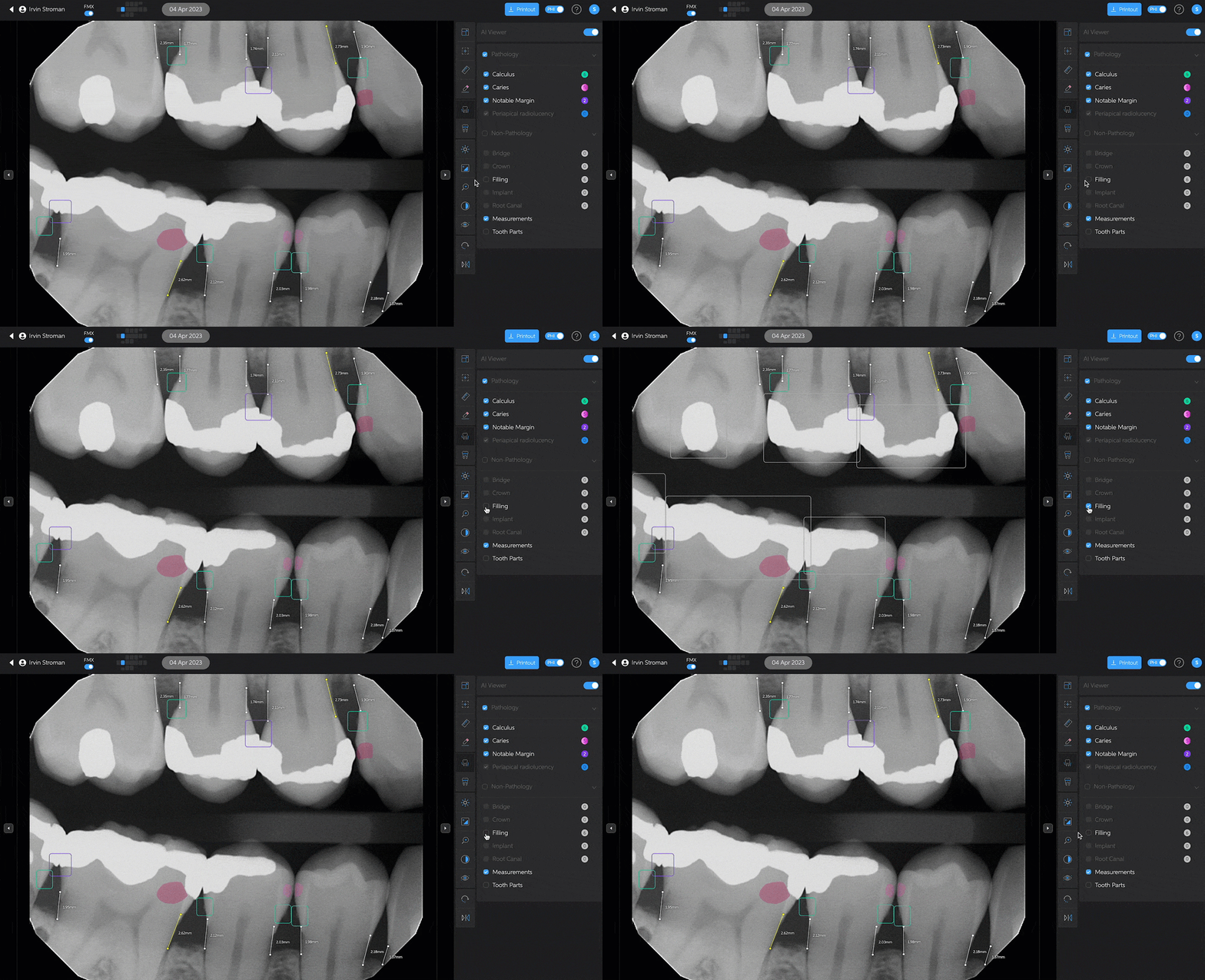
Bone level measurements and tooth parts can also be turned on and off in the panel by clicking the check boxes next to them.
