Navigating the Schedule
Learn how to navigate your Practice Intelligence® Schedule Page
The home page will always take you to today's date. Use the arrows next to the date to navigate between days.


The banner across the top of your schedule will show you how many patients are on today's schedule, how many need x-rays, and how many opportunities the AI has detected.

Clicking on any of the opportunity types will highlight the patients with those opportunities on your schedule.


You can filter your schedule by provider or operatory, by patients who have unscheduled or predicted treatment, and by patients who need full mouth series or bitewing series taken.

Clicking on the arrows next to a provider's name will filter the schedule to show only them. The provider dropdown will allow you to filter which providers you would like to see. Clicking view all will take you back to showing all providers.
Clicking on the PHI button will allow you to view the schedule while hiding patient information.

Hovering over a patient on the schedule will show you what they have scheduled for today and what opportunities the AI has identified for that patient. Clicking on the patient will bring up the patient module.

In the patient module you can see the radiographs taken for the patient. Along the left-hand side you can see their last hygiene visit, their next scheduled hygiene visit, any scheduled treatments, and any unscheduled treatments. Across the top of the module you can turn detections on and off by clicking on them.
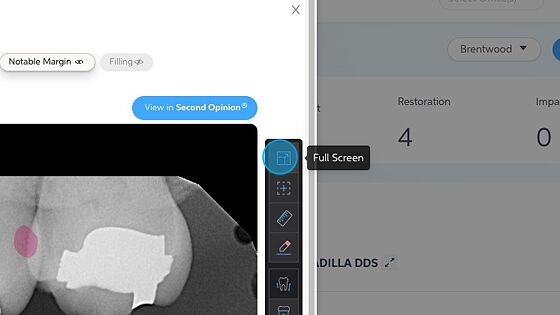
On the right-hand side of the radiographs you have all the tools that can be found in your Second Opinion® software.

At the bottom of the patient module you will see all of the patient radiographs as well as all predictions found in that series. Clicking on the predictions will bring up those images.
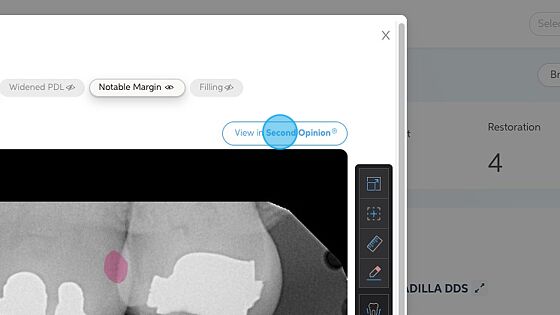
Clicking on View in Second Opinion® will open up that patient in the Second Opinion® software.
Hovering over the Download Schedule button will show you all of your options for downloading your daily schedule. Simply click on the download option you want and the PDF will download to your computer.
