My patient says “No insurance on file” but they do have insurance?
My patient says “No insurance on file” but they do have insurance?
Please double check that the insurance information is correctly placed within your practice management software and the patient’s member ID is accurately filled out. This information will update in Precheck on the next re-sync (overnight). To learn more, find your practice management software below.
Open Dental
Member ID
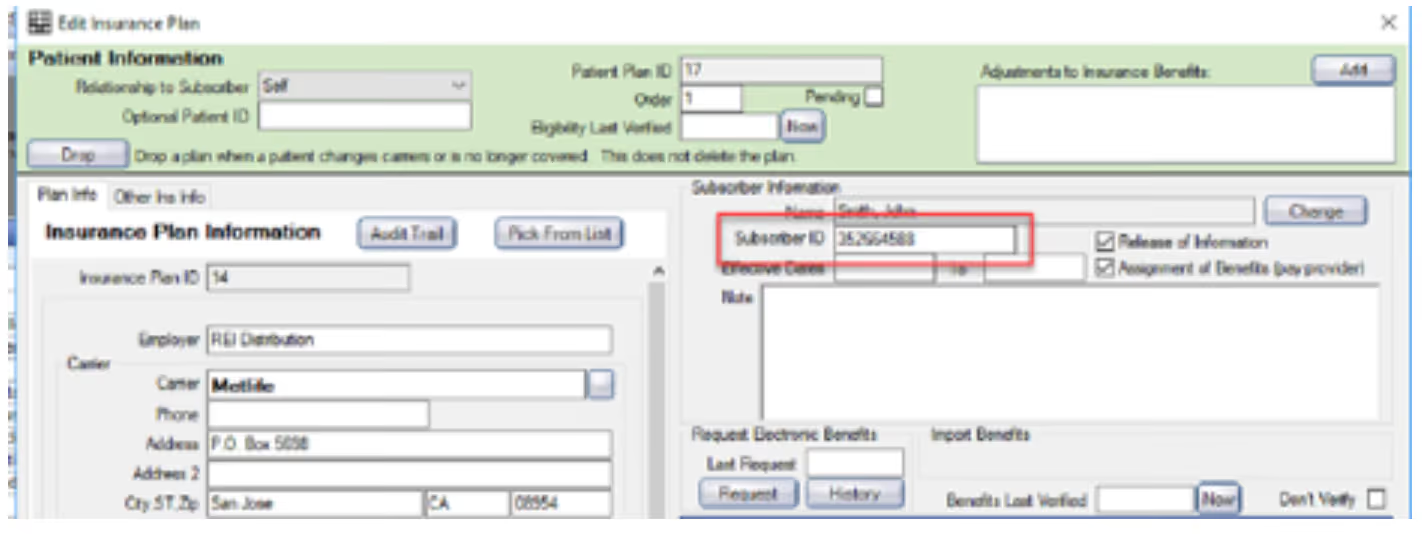
The Eligibility Member ID pulls from the Subscriber ID field under the Primary Insurance Plan in Open Dental.
- In Open Dental, open the Family tab, then select the patient in question
- Locate the Subscriber ID field

To edit, double click the cell next to Subscriber ID, then add the updated member ID into the Subscriber ID field under Subscriber Information
Payer ID
The Eligibility Payer ID pulls from the Payer ID field in Open Dental.
- In Open Dental, navigate to Setup > Family / Insurance > Payer IDs
- Payer ID is listed in the Payer ID column

- To edit, double click the insurance in question, then enter the Payer ID in the Payer ID field
Eaglesoft
Member ID
The Eligibility Member ID pulls from the Primary Member ID field within Preferences in Eaglesoft.
Click here to learn why we use the Primary Member ID in Eaglesoft versus the Carrier ID.
- In Eaglesoft, open the Person List
- Double click on the patient in question
- Click Preferences
- Ensure the patient’s member ID is entered into the Primary Member ID field

Payer ID
The Eligibility Payer ID pulls from the Claim Payer ID field in Eaglesoft.
- In Eaglesoft, go to Lists > Insurance Companies
- Select the insurance in question and click Edit
- Ensure the patient's Payer ID is entered into the Claim Payer ID field

Dentrix
Member ID
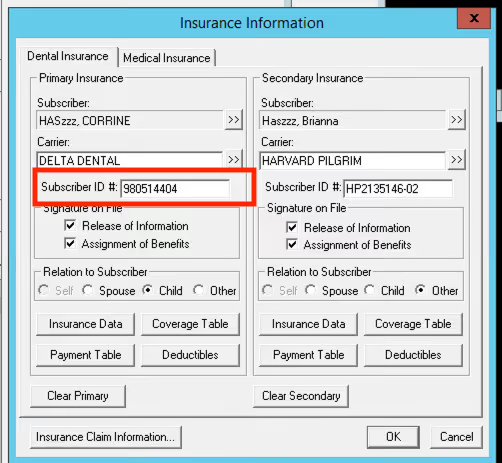
The Eligibility Member ID pulls from the Subscriber ID # field within Dentrix.
- In Dentrix, open the patient’s Family File
- Double click the Primary Dental Insurance field
- The patient's Member ID is entered into the Subscriber ID # field
Payor ID
The Eligibility Payor ID pulls from the Payor ID column in Dentrix.
- In Dentrix, open the Dentrix Office Manager
- Click Maintenance > Reference > Insurance Maintenance
- The patient's Payor ID will be listed under the Payor ID column

- To edit, double click on the insurance in question
- Enter the Payor ID in the Payor ID field. Or, you can click > next to the field to utilize Dentrix's Payor ID lookup feature to look up the ID by Payor Name
What if I can’t connect to a carrier?
Because of our unique verification method checking directly with carriers and multiple clearinghouses, eligibility information may be available without a direct connection. Check to see if your patient has a summary available containing the information needed. If no information is available, the carrier is not supported and other avenues of verification will be needed.

What websites are used for various connections?
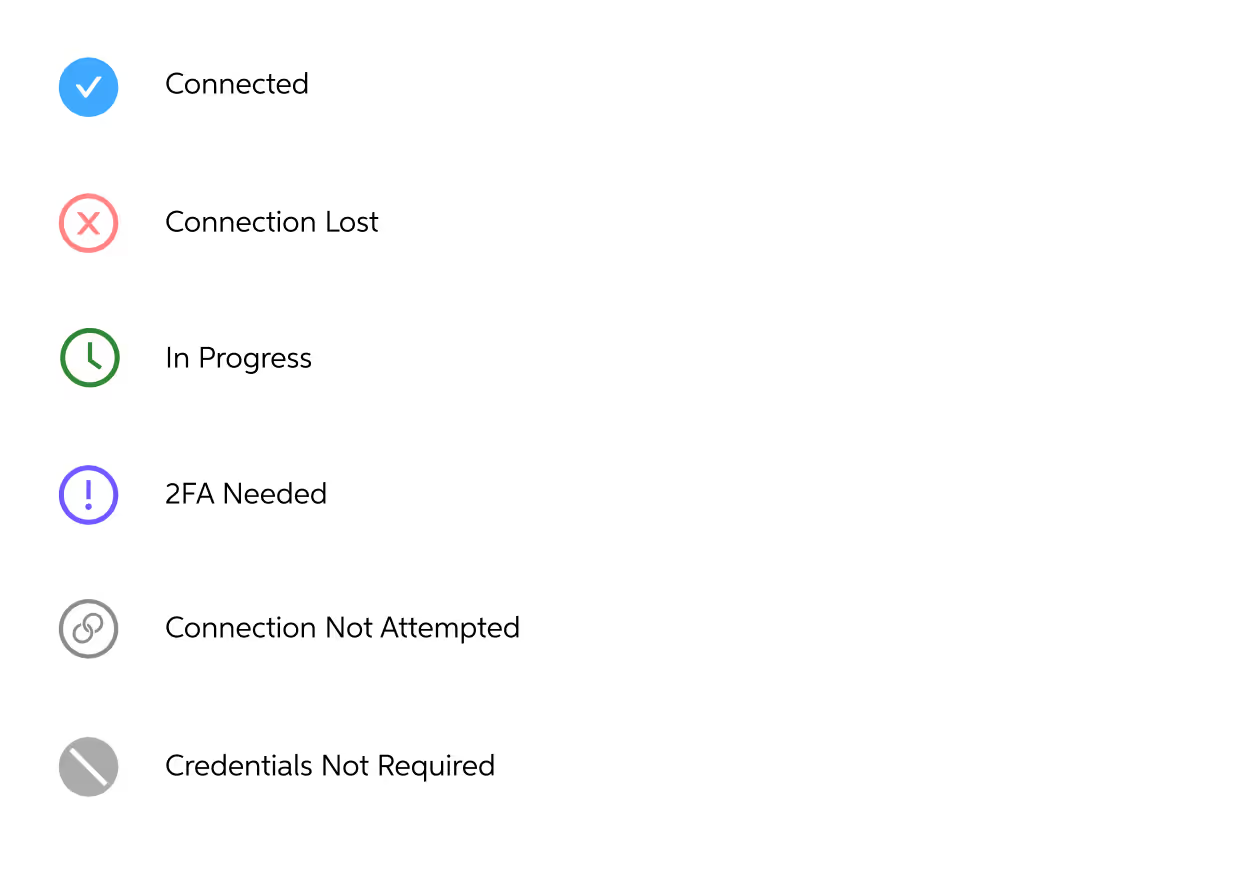
What do the colored links mean?
What payors does Precheck have access to?
Precheck continues to work on adding more payer options to its database. This current list is accurate as of 4/14/2025.
View list of supported payors ➜
Our practice has multiple NPIs/providers, how do I connect all of them?
At this time we only support 1 NPI per office.
How To Create A New Pearl User
1. Navigate to Member Settings
From within your Pearl platform, go to Members in the settings.

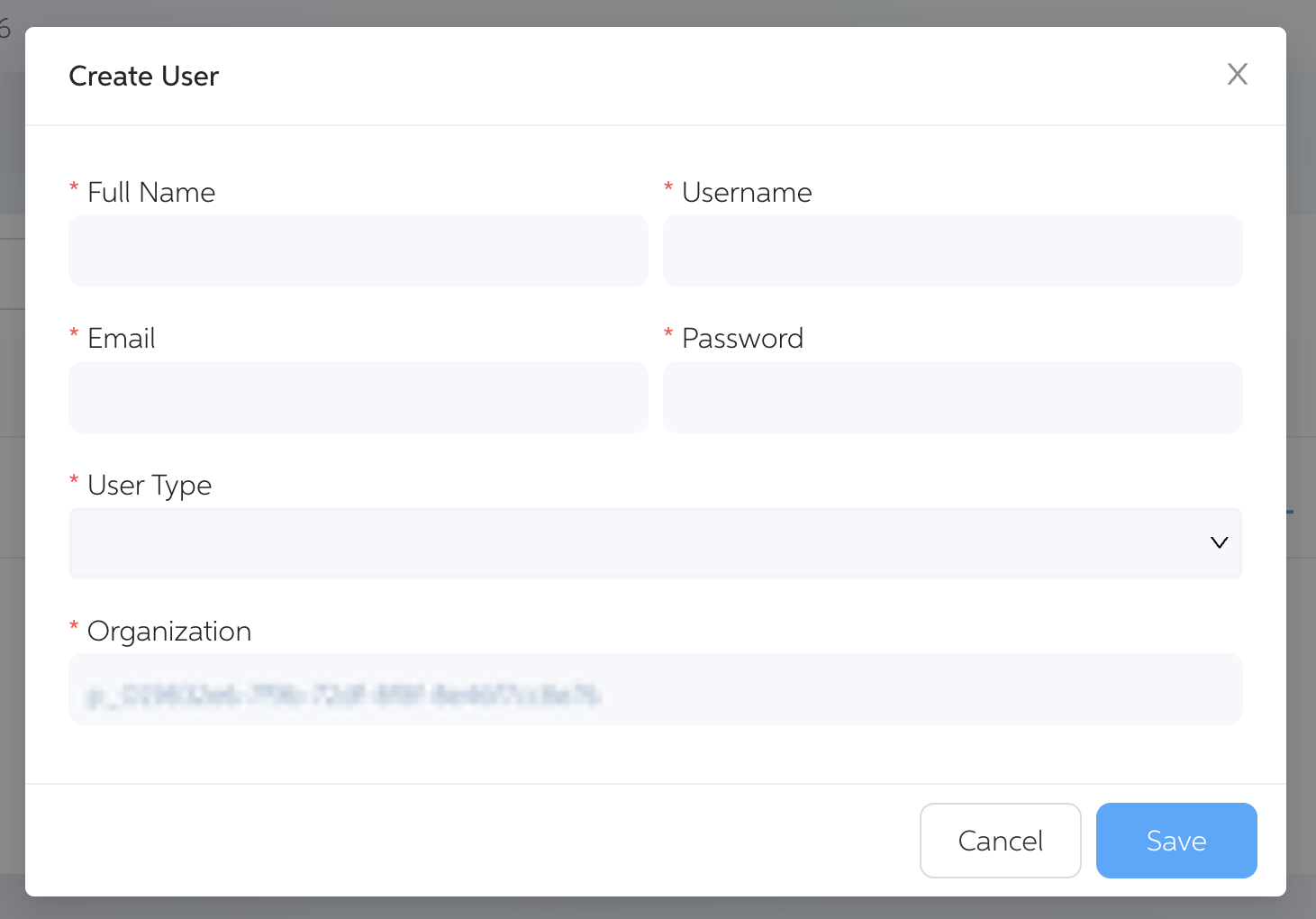
2. Click Create User


3. Fill Out the Form
Complete all required fields to set up the new user account.
4. Select the User Type
Choose one:
- Org Admin – Access to all offices in your organization
- Office Admin – Access limited to specified office(s)

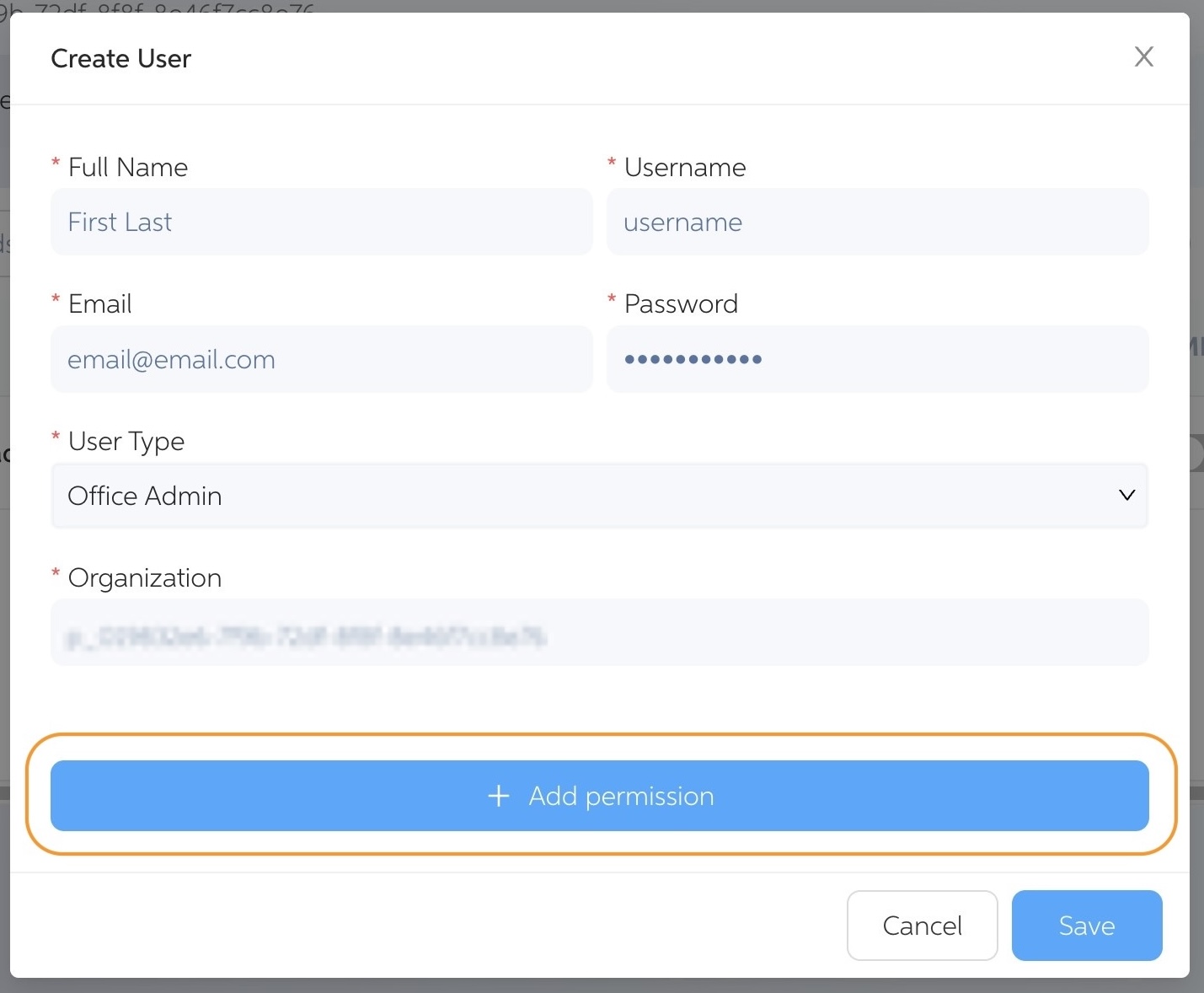
5. Assign Permissions (Office Admin Only)
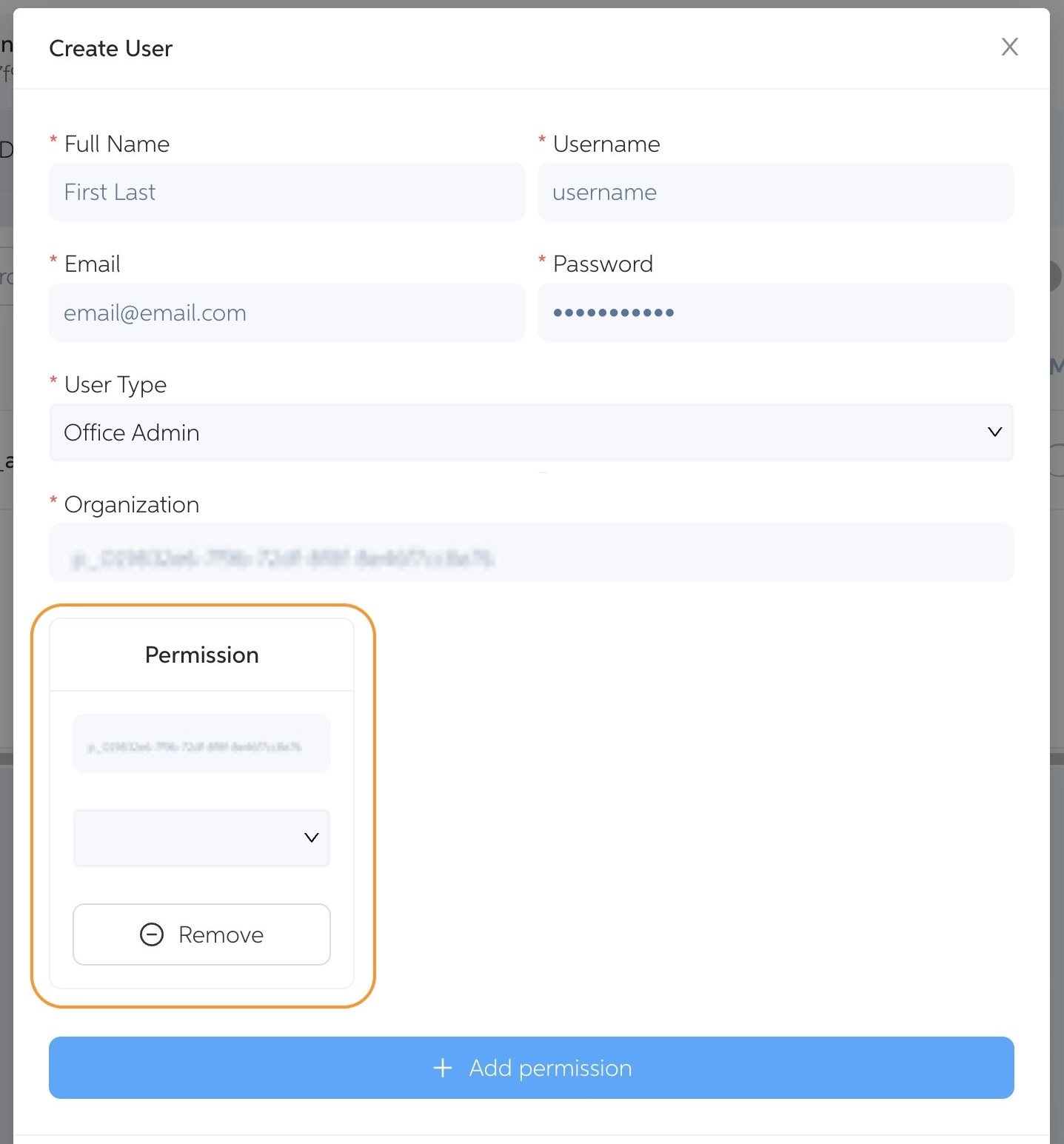
- Click Add Permission
- Select which office(s) the user should be able to manage
6. Click Save
Finalize the setup by clicking the Save button.

7. Your newly created user can now be used to login to Pearl
Does Precheck know if I am in-network (or out-of-network) with a payor?
Precheck will not determine if a provider is in/out-of-network. Currently those details are accessible via the checkbox to show Out of Network.

If the patient information appears wrong or incomplete, how can I address this?
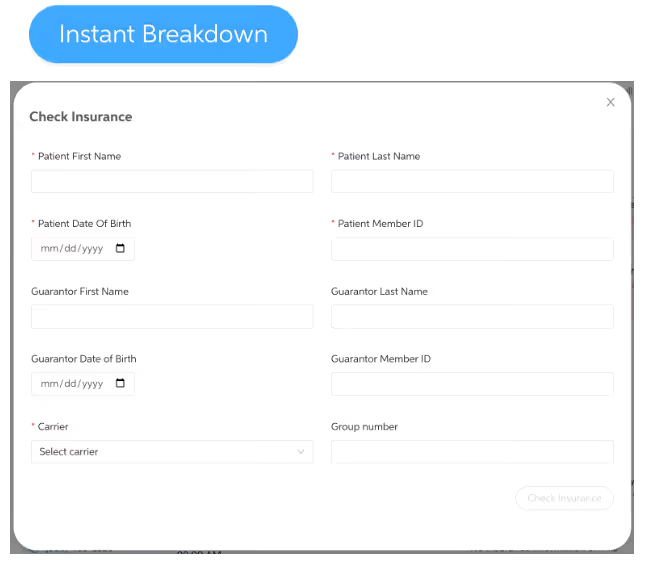
The Instant Breakdown feature allows you to manually search a patient’s benefit information. When you have the insurance information, you can generate an instant breakdown by filling in the form fields.
A patient was added to the schedule or brought new insurance information to their appointment? How can I get their eligibility information?
The Instant Breakdown feature allows you to manually search a patient’s benefit information. When you have the insurance information, you can generate an instant breakdown by filling in the form fields.
How often is patient insurance information updated?
Patient insurance information is pulled from your PMS and re-updated daily in the morning.
How does the Precheck product populate insurance information?
We first run an automated process with hundreds of payers that we have setup using the existing PMS information. The other option is that we support even more payers using the office's login credentials. In the case of both options being available and setup, the office login method will take precedence over the automated process.
Does information from Precheck automatically update my PMS coverage tables?
No, you may manually do so when needed. However full and condensed reports can be saved into your PMS whenever desired.